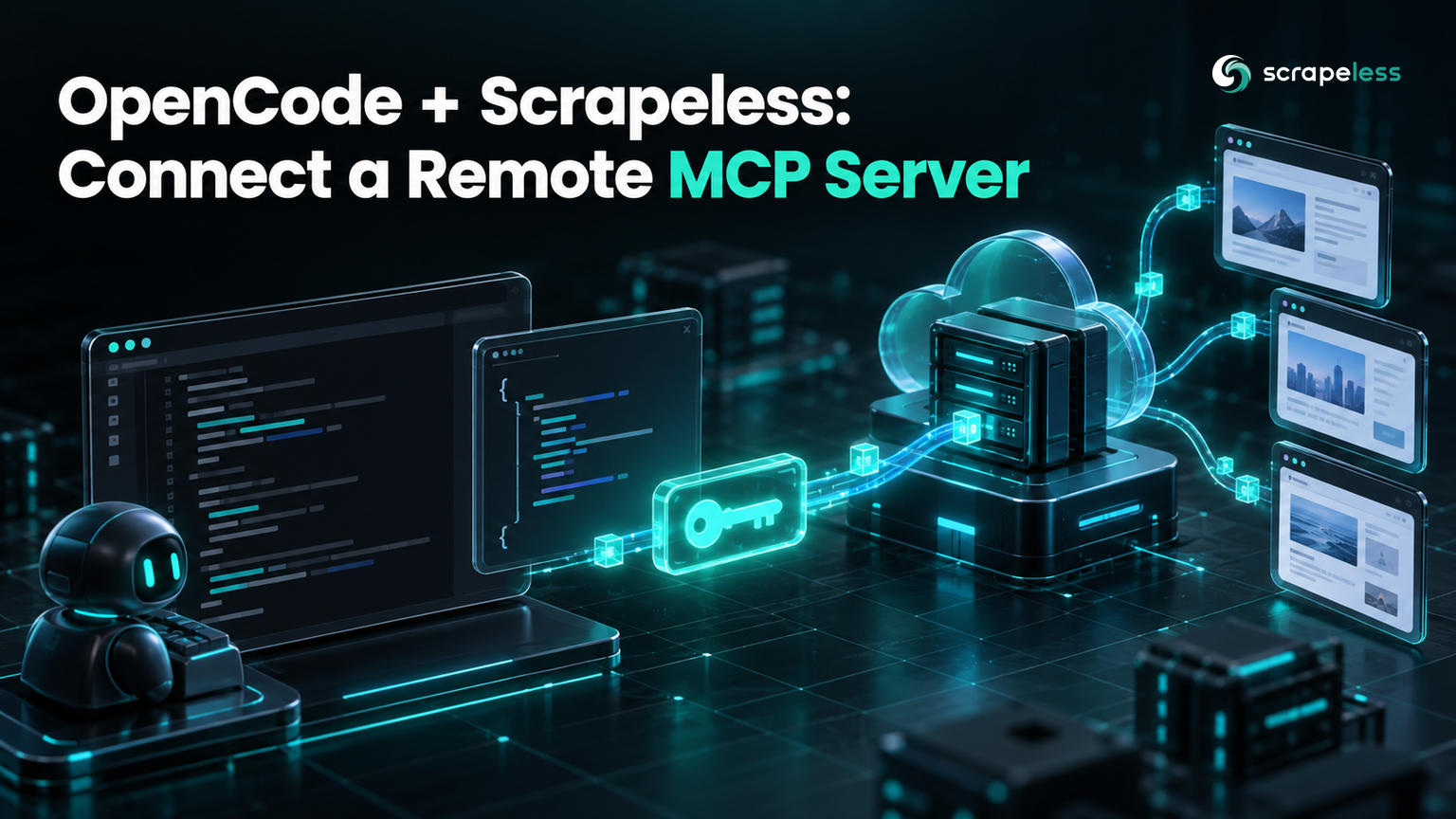
OpenCode + Scrapeless: Connect a Remote MCP Server

Senior Cybersecurity Analyst
TL;DR:
- OpenCode takes Scrapeless as a
remoteMCP server inopencode.json. The entry needs aurl, anx-api-tokenheader and"oauth": false. - Write the key as
{env:SCRAPELESS_API_KEY}, not${SCRAPELESS_API_KEY}. OpenCode substitutes the first form and sends the second one as literal text, and the server still lists as connected while every tool call fails with a 401. ✓ connectedonly proves the header is present. The Scrapeless handshake accepts anyx-api-tokenvalue and still lists all 25 tools, so read one tool result before trusting the setup.- The
oauthsetting decides how a Bearer mistake looks. Left at its default, anAuthorization: Bearerheader shows⚠ needs authentication; with"oauth": falsethe same header shows✗ failedwith a 401. - Tools arrive named
<server>_<tool>. A server entry calledscrapelessgives the modelscrapeless_scrape_markdown, and the 25 definitions come back as atools/listresponse of about 30 KB. - Get a key on the Scrapeless free plan and connect OpenCode in a couple of minutes.
OpenCode runs a coding agent in your terminal against whichever model provider you configure. It reads files and runs commands, but a question about a live web page needs a tool that fetches one, and an MCP server is how OpenCode picks up tools it does not ship with.
The Scrapeless MCP server is hosted, so connecting it is configuration, not installation. This guide covers the config entry, the substitution syntax that breaks quietly, what each opencode mcp list status means, and how to tell a working key from a server that merely connected.
What OpenCode Gets From Scrapeless
The server lists 25 tools. Three return a page in one call: scrape_markdown, scrape_html and scrape_screenshot. Sixteen browser_* tools, such as browser_create, browser_goto, browser_click and browser_type, drive a cloud browser session a step at a time. crawl_start, crawl_result and crawl_cancel manage a crawl, and google_search, google_trends and ai_scraper complete the set.
For most prompts the useful one is scrape_markdown. It returns the rendered page as Markdown, which is the shape a model reads most cheaply, and it needs nothing but a URL.
Prerequisites
- OpenCode, with a model provider already configured. This guide uses OpenCode 1.17.19.
- A Scrapeless API key from the Scrapeless dashboard.
- Nothing to install for the server. It runs at
https://api.scrapeless.com/mcpand OpenCode reaches it over HTTP.
Step 1: Add the Server to opencode.json
OpenCode reads MCP servers from the mcp block of its config. The global file is ~/.config/opencode/opencode.json, and an opencode.json in a project root applies to that project:
json
{
  "$schema": "https://opencode.ai/config.json",
  "mcp": {
    "scrapeless": {
      "type": "remote",
      "url": "https://api.scrapeless.com/mcp",
      "oauth": false,
      "headers": {
        "x-api-token": "{env:SCRAPELESS_API_KEY}"
      }
    }
  }
}
"type": "remote" makes OpenCode connect over HTTP instead of launching a local command. "oauth": false stops it from starting an OAuth flow, which the Scrapeless endpoint does not offer; its OAuth discovery paths return 404, and it authenticates on the header alone. opencode mcp add can also write an entry and accepts --url and --header flags, but editing the file directly is the reliable way to get the {env:} reference exactly right.
Step 2: Use {env:} Substitution, Not ${}
OpenCode substitutes {env:VARIABLE_NAME} with the value of that environment variable when it loads the config. Environment variables are the usual home for credentials that change between machines, the same split the Twelve-Factor App's config guideline recommends, and {env:} is how OpenCode reads them. Export the key in the shell that starts OpenCode:
bash
export SCRAPELESS_API_KEY="your-scrapeless-api-key"
opencode mcp list
text
●  ✓ scrapeless connected
│      https://api.scrapeless.com/mcp
The shell-style ${SCRAPELESS_API_KEY} looks equivalent and is not. OpenCode passes it through as literal text, and because the Scrapeless handshake accepts any non-empty token, the server still lists ✓ connected. The problem shows up only when the model calls a tool:
text
Failed to fetch data. Error: [Scrapeless]: Request POST /api/v1/unlocker/request failed with status 401Leaving the variable unexported fails earlier and more visibly. With {env:SCRAPELESS_API_KEY} pointing at nothing, the handshake itself is rejected:
text
●  ✗ scrapeless failed
│      SSE error: Non-200 status code (401)
│      https://api.scrapeless.com/mcp
Setting this up now? The Scrapeless free plan covers the connection and your first tool calls.
Step 3: Read Each opencode mcp list Status
The status line says whether OpenCode could open the connection. It does not say whether the key works.
| Status | What happened | Next step |
|---|---|---|
✓ scrapeless connected |
The server accepted a request carrying an x-api-token header |
Make one tool call to confirm the key |
✗ scrapeless failed with a 401 |
The header was missing or empty | Check the header name and the export |
⚠ scrapeless needs authentication |
A 401 while OAuth is still enabled, usually from a Bearer header | Use x-api-token and set "oauth": false |
One failure mode reads like a bad key and is not. If the status line says connected and a tool call answers Failed to fetch data, check whether another MCP server on the machine exposes the same Scrapeless tools, such as a gateway that routes several providers behind one credential. The agent may have called that one instead. OpenCode prefixes each tool with its server name, so the transcript line names the server that answered.
Most MCP examples authenticate with Authorization: Bearer, the scheme the OAuth 2.0 bearer token specification defines. Scrapeless reads x-api-token instead, so a Bearer header earns a 401 Unauthorized response. With oauth at its default, OpenCode treats that 401 as a prompt to sign in:
text
●  ⚠ scrapeless needs authentication
│      https://api.scrapeless.com/mcp
With "oauth": false, the same header reads ✗ failed with the 401, which describes a wrong header more accurately than an invitation to authenticate.
Step 4: Call a Tool From a Prompt
Name the server and the tool the first time, so the result has only one possible source:
text
Use the scrapeless MCP server's scrape_markdown tool on https://example.com
and reply with the first markdown heading line.
opencode run --format json prints every step as a JSON event. The tool event from that prompt:
text
type: tool_use
tool: scrapeless_scrape_markdown
status: completed
output: Response: "# Example Domain\n\nThis domain is for use in documentation ...
The model's reply was # Example Domain. The tool name follows OpenCode's <server>_<tool> pattern, so an entry called scrapeless puts the same prefix on all 25 tools.
That output is the check opencode mcp list cannot give you. A result that starts with page content means the key works. A result that starts with Failed to fetch data means the connection is fine and the key is not. The MCP tools specification provides an isError flag for failed calls, but Scrapeless returns both outcomes as ordinary tool text without it, so the text is what to read.
Every connected server also adds its tool definitions to the model's context, and the Scrapeless tools/list response for all 25 tools is about 30 KB. Setting "enabled": false on the entry keeps it configured but out of sessions that do not need the web.
For what the server exposes, the Scrapeless MCP server announcement covers the launch, and our MCP integration guide compares the ways agents reach a browser. The Browser MCP documentation carries the configuration reference, the Scraping API page describes the actors behind the tools, and pricing lists what a call costs.
Conclusion
OpenCode needs four things from the entry: "type": "remote", the Scrapeless URL, an x-api-token header written as {env:SCRAPELESS_API_KEY}, and "oauth": false. The substitution syntax is the detail most likely to go wrong, because the broken form still connects.
opencode mcp list catches a missing header, an unexported variable and a Bearer mix-up. Only a tool result catches a bad key, so make one call and read what comes back before building anything on top of the connection.
Ready to give OpenCode a live view of the web? Start with the Scrapeless free plan and add the server.
FAQ
Q: How do I add a remote MCP server with an API key header to OpenCode?
Add an entry under mcp in opencode.json with "type": "remote", the server url, "oauth": false and a headers object. For Scrapeless the header is x-api-token, written as {env:SCRAPELESS_API_KEY} so the key stays out of the file.
Q: Why doesn't ${SCRAPELESS_API_KEY} work in opencode.json?
OpenCode's substitution syntax is {env:SCRAPELESS_API_KEY}. The shell-style form is sent as literal text, so the server still lists as connected and tool calls come back with failed with status 401.
Q: Why does opencode mcp list say needs authentication?
The server returned a 401 while oauth was enabled, so OpenCode offers a sign-in. For Scrapeless that almost always means an Authorization: Bearer header; switch to x-api-token and set "oauth": false.
Q: Does "connected" mean my Scrapeless key is valid?
No. The Scrapeless handshake and tool listing succeed with any non-empty x-api-token value. Only a tool call reveals a bad key, as a result that starts with Failed to fetch data.
Q: What are the Scrapeless tool names inside OpenCode?
OpenCode names MCP tools <server>_<tool>. With the entry called scrapeless, the model sees scrapeless_scrape_markdown and the same prefix on the other 24 tools.
Q: Where does OpenCode read opencode.json from?
The global config is ~/.config/opencode/opencode.json, and a project can add its own opencode.json in its root. The OPENCODE_CONFIG environment variable points OpenCode at a specific config file instead.
Q: Do I need to install a package for the Scrapeless MCP server?
No. The server is hosted at https://api.scrapeless.com/mcp, and OpenCode connects to it over HTTP, so there is no package, no local process and no version to keep updated.
At Scrapeless, we only access publicly available data while strictly complying with applicable laws, regulations, and website privacy policies. The content in this blog is for demonstration purposes only and does not involve any illegal or infringing activities. We make no guarantees and disclaim all liability for the use of information from this blog or third-party links. Before engaging in any scraping activities, consult your legal advisor and review the target website's terms of service or obtain the necessary permissions.